



MS Excel 2003: Remove carriage returns (displayed as tiny boxes) and br tags from data
Question: In Microsoft Excel 2003/XP/2000/97, I have data that has carriage returns (displayed as tiny boxes) and <br> tags appearing in the cells. I want to be able to remove these characters, but keep the rest of the text intact. How can I do this?
Answer: You should be able to remove these characters using the SUBSTITUTE function in Excel.
Let's look at an example.
Download Excel spreadsheet (as demonstrated below)
Below we have an Excel spreadsheet. Column A contains the original text that includes both carriage returns (displayed as tiny boxes) and <br> tags.
In example #1, we've chosen to remove only the carriage return character.
To do this, we've pasted the following formula into column B that uses the SUBSTITUTE and CHAR functions. Then copied the formula down.
=SUBSTITUTE(A2,CHAR(13),"")
This will remove all carriage returns (which is a 13 in ASCII). To view ASCII values, take a look at our ASCII Chart.
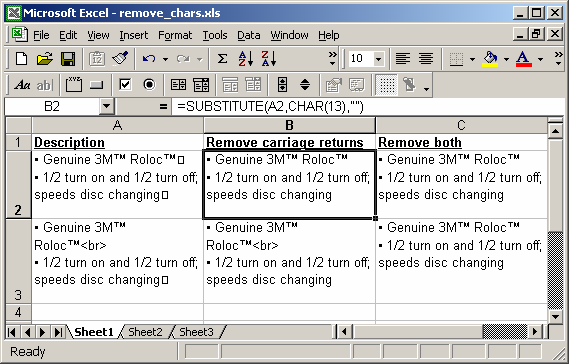
As you can see, all of the tiny boxes (ie: carriage returns) no longer appear in column B. However, you can still see <br> tags (see cell B3).
In example #2, we've chosen to remove both the carriage returns as well as the <br> tags.
To do this, we've pasted the following formula into column C. Then copied the formula down.
=SUBSTITUTE(SUBSTITUTE(A2,CHAR(13),""),"<br>","")
This will remove all carriage returns (ie: ASCII 13 characters) as well as the <br> tags.
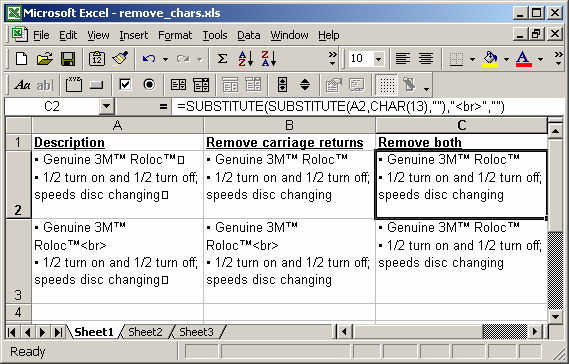
As you can see, both the carriage returns and <br> tags have been removed from column C.
Advertisements