



MS Excel 2007: Copy and paste only nonblank cells (condensing paste range)
This Excel tutorial explains how to copy and paste only nonblank cells by condensing a paste range in Excel 2007 (with screenshots and step-by-step instructions).
See solution in other versions of Excel:
Question: In Microsoft Excel 2007, how do I copy the entries of a series of cells and paste only non-blank cells? Paste special then skip blank option doesn't seem to work.
Answer: Unfortunately, there isn't a simple solution to this question. The following example demonstrates how to copy and paste only nonblank cells.
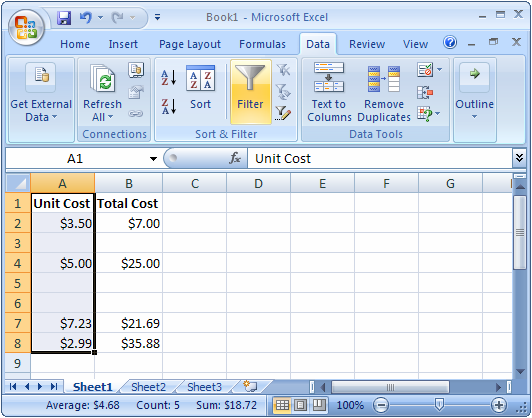
First, highlight all of the cells (including both blank and nonblank cells) that you wish to paste. In this example, we've highlighted cells A1 to A8.
Next, select the Data tab in the toolbar at the top of the screen and click on the Filter button (see orange highlighted button in picture below) in the Sort & Filter group.
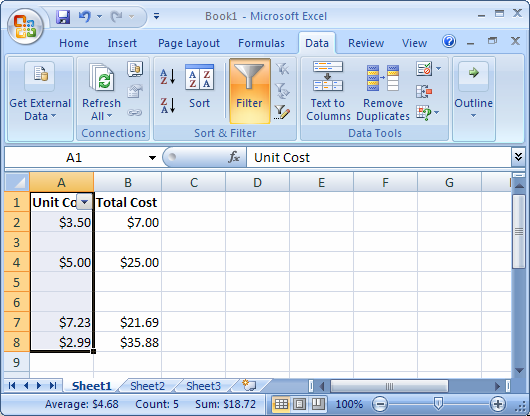
A drop-down should appear in the first cell of your range. Click on this drop-down.
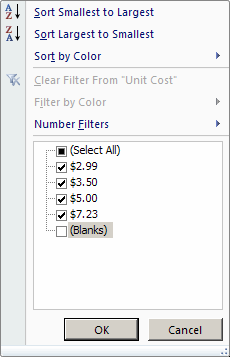
De-select the (Blanks) option and then click on the OK button.
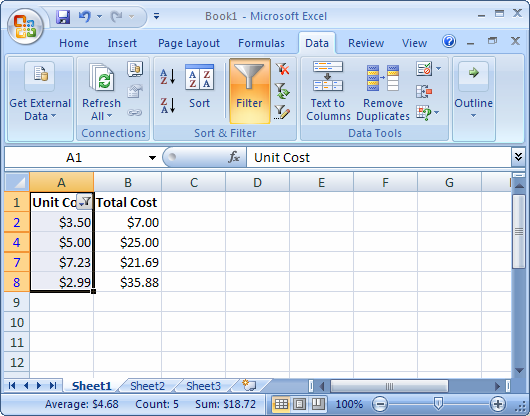
Your spreadsheet should now only display nonblank cells.
Next, copy the data using Ctrl+C.
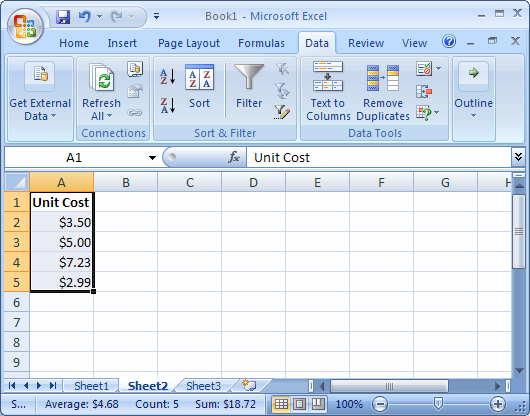
Then paste the data using Ctrl+V. In this example, we've chosen to paste the nonblank cells into Sheet2.
Advertisements