



MS Excel 2007: View hyperlink result at top of viewing area
This Excel tutorial explains how to set up a spreadsheet so that the result of a hyperlink is displayed at the top of the viewing area in Excel 2007 (with screenshots and step-by-step instructions).
See solution in other versions of Excel:
Question: In Microsoft Excel 2007, I have a worksheet that has the first 6 rows frozen. In the first 6 rows, I have hyperlinks to different cells in column B. When I click the hyperlinks, Excel tends to show the cell at the bottom of the viewing page.
I want the cell that the hyperlink refers to be displayed in the next row after the frozen rows. Can this be done?
Answer: Let's look at an example.
Below, we have an Excel spreadsheet with the first 6 rows hidden. In cell B5, we've created a hyperlink to cell B30. When we click on the hyperlink in cell B5, the spreadsheet looks as follows:

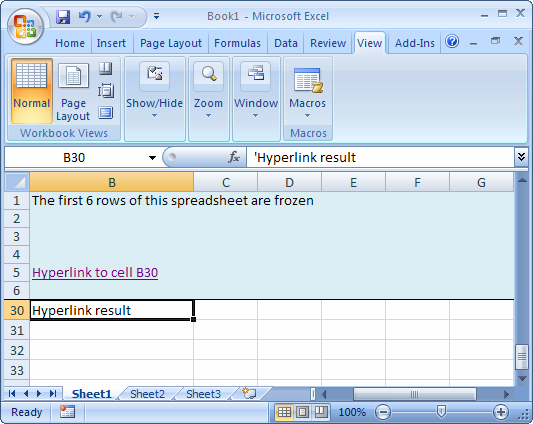
The hyperlink is at the bottom of the viewing area in the spreadsheet. We want to see row 30 directly under row 6.
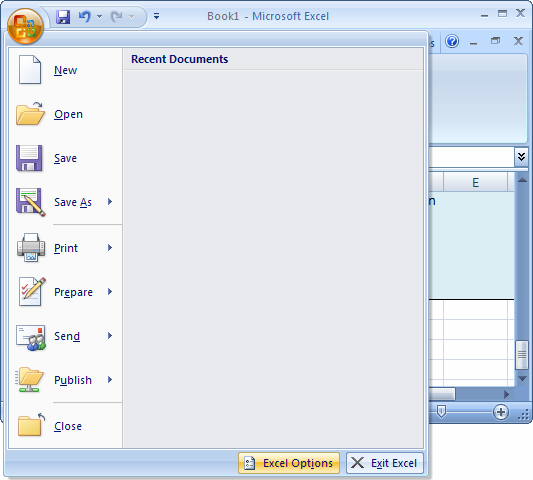
To fix this, click on the Microsoft Office button  in the top left of the Excel window and then click on the Excel Options button.
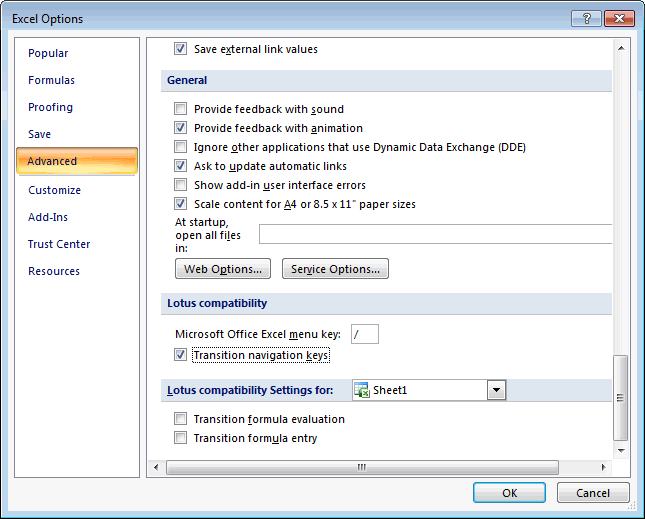
When the Excel Options window appears, click on the Advanced option on the left. Then scroll down to the Lotus Compatibility section in the right side of the window and select the checkbox called "Transition navigation keys". Click on the OK button.
Now when you click on the hyperlink in cell B5, your spreadsheet should look as follows:
Advertisements