



MS Excel 2003: Update a cell when a checkbox is clicked (Control Toolbox toolbar)
This Excel tutorial explains how to write a macro to update a cell when a checkbox is clicked using the Control Toolbox Toolbar in Excel 2003 and older versions (with screenshots and step-by-step instructions).
Question: In Microsoft Excel 2003/XP/2000/97, is there a way to link a check box to another cell using the Control Toolbox? For example, I've made a checkbox and whenever the checkbox is clicked, I would like the current date to automatically appear in another cell. Is this possible?
Also I would like the date to not change whenever the worksheet is opened. For example, if a cell has been set to July 16th and the worksheet is opened on July 17th, I still want the cell to read as July 16th.
Answer: Because you don't want the cell value changing whenever the spreadsheet "recalculates", we'll have to create a macro to determine when to update the cell value.
Let's look at an example.
Download Excel spreadsheet (as demonstrated below)
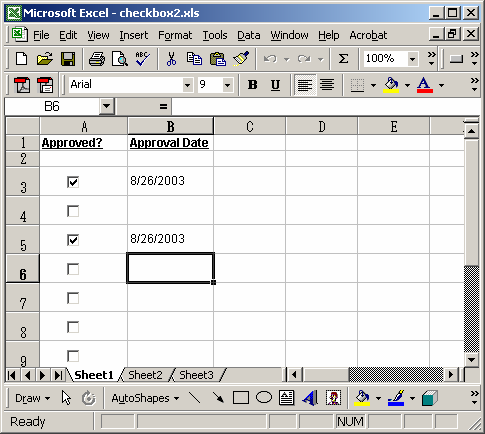
In our spreadsheet, there are two columns - column A contains a checkbox and column B contains the "linked" cell.
We've created various checkboxes in column A using the Control Toolbox toolbar. To view the Control Toolbox toolbar, select Toolbars > Control Toolbox under the View menu.
When the checkbox in column A is "checked", the associated cell in column B will be updated with the current system date. When the checkbox is "unchecked", the associated cell value will be cleared.
This is accomplished with a macro called Process_Checkbox. You can view the macro by pressing Alt+F11.
The macro determines what row the checkbox resides in and then "sets the value" of the associated cell in column B.
Macro Code
The macro code looks like this:
Sub Process_CheckBox(pObject)

   Dim LRow As Integer
   Dim LRange As String

   'Find row that checkbox resides in
   LRow = pObject.TopLeftCell.Row
   LRange = "B" & CStr(LRow)

   'Change date in column B, if checkbox is checked
   If pObject.Value = True Then
      ActiveSheet.Range(LRange).Value = Date

   'Clear date in column B, if checkbox is unchecked
   Else
      ActiveSheet.Range(LRange).Value = Null
   End If

End Sub

Private Sub CheckBox1_Click()
   Process_CheckBox CheckBox1
End Sub

Private Sub CheckBox2_Click()
   Process_CheckBox CheckBox2
End Sub

Private Sub CheckBox3_Click()
   Process_CheckBox CheckBox3
End Sub

Private Sub CheckBox4_Click()
   Process_CheckBox CheckBox4
End Sub

Private Sub CheckBox5_Click()
   Process_CheckBox CheckBox5
End Sub

Private Sub CheckBox6_Click()
   Process_CheckBox CheckBox6
End Sub

Private Sub CheckBox7_Click()
   Process_CheckBox CheckBox7
End Sub
Advertisements