



MS Excel 2003: Link data to a combo box and update underlying data
This Excel tutorial explains how to write a macro to link data to a combo box and update the underlying data in Excel 2003 and older versions (with screenshots and step-by-step instructions).
Question: In Microsoft Excel 2003/XP/2000/97, I want to be able to use a combo box (on another sheet) to display data from Sheet1 and then be able to edit that data and save the changes back to Sheet1. How can I do this?
Answer: This can be done with macro code.
Let's look at an example.
Download Excel spreadsheet (as demonstrated below)
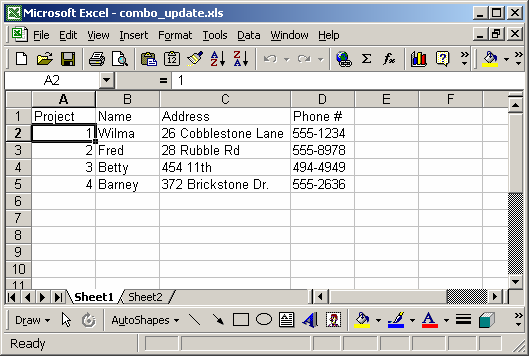
In our spreadsheet, our data is on Sheet1.
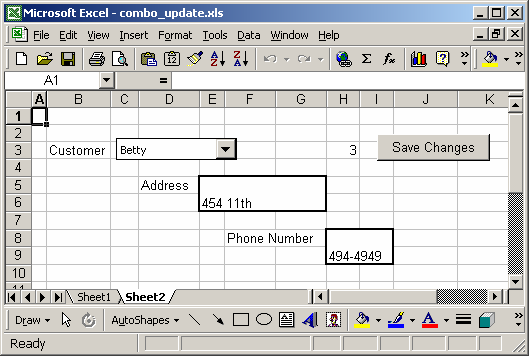
On Sheet2, we have our combo box which is linked to the data on Sheet1. When the user selects a customer in the combo box, the address and phone number will be automatically populated. The population of this data is done by a macro called PopulateData (which is the macro assigned to the combo box).
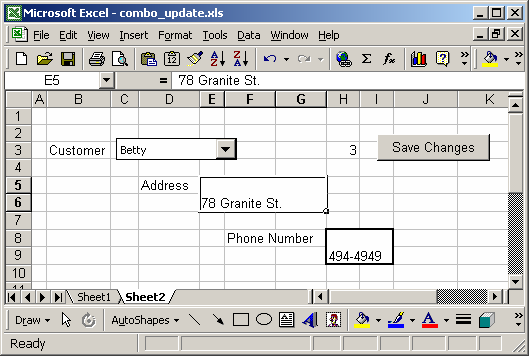
A user can then update the data on this sheet. In our example, we've changed Betty's address from 454 11th to 78 Granite St.
Next, we click on the Save Changes button. This calls a macro called SaveChanges.
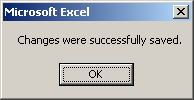
The macro will update the corresponding data on Sheet1 and display the message above when it has completed.
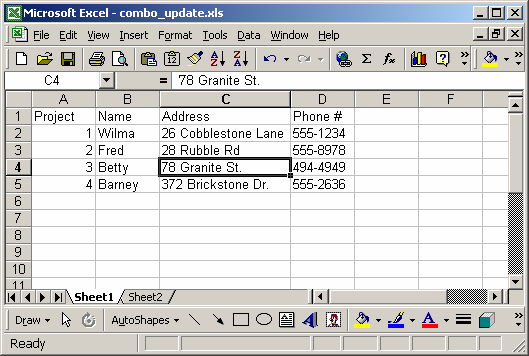
Now if we go to Sheet1, we can see that the address for Betty has been updated.
You can press Alt+F11 to view the VBA code. Select the module called Module1 in the left window.
Macro Code
The macro code looks like this:
The macro code for the Save Changes button:
Sub SaveChanges()

   'Update data on Sheet1 based on changes made to data on Sheet2

   Dim LProject As Integer
   Dim LAddress As String
   Dim LPhoneNbr As String
   Dim LRow As Long
   Dim LFound As Boolean

   'Retrieve project number number
   LProject = Range("H3").Value

   'Retrieve new address and phone number information
   LAddress = Range("E5").Value
   LPhoneNbr = Range("H8").Value

   'Move to Sheet1 to save the changes
   Sheets("Sheet1").Select

   LFound = False

   LRow = 2

   Do While LFound = False
      'Found matching project, now update address and phone number information
      If Range("A" & LRow).Value = LProject Then
         LFound = True
         Range("C" & LRow).Value = LAddress
         Range("D" & LRow).Value = LPhoneNbr

     'Encountered a blank project number (assuming end of list on Sheet1)
     ElseIf IsEmpty(Range("A" & LRow).Value) = True Then
        MsgBox ("No match was found. Changes were not made.")
        Exit Sub
     End If

     LRow = LRow + 1
   Loop

   'Reposition back on Sheet2
   Sheets("Sheet2").Select
   Range("E5").Select

   MsgBox ("Changes were successfully saved.")

End Sub
The macro code for the customer combo box:
Sub PopulateData()

   Dim LProject As Integer
   Dim LAddress As String
   Dim LPhoneNbr As String
   Dim LRow As Long
   Dim LFound As Boolean

   'Retrieve project number number
   LProject = Range("H3").Value

   'Move to Sheet1
   Sheets("Sheet1").Select

   LFound = False

   LRow = 2

   Do While LFound = False
      'Found matching project, now update address and phone number information on Sheet2
      If Range("A" & LRow).Value = LProject Then
         LFound = True
         LAddress = Range("C" & LRow).Value
         LPhoneNbr = Range("D" & LRow).Value

         Sheets("Sheet2").Select
         Range("E5").Value = LAddress
         Range("H8").Value = LPhoneNbr

      'Encountered a blank project number (assuming end of list on Sheet1)
      ElseIf IsEmpty(Range("A" & LRow).Value) = True Then
         MsgBox ("No match was found for combo box selection.")
         Exit Sub
      End If

      LRow = LRow + 1
   Loop

End Sub
Advertisements