



MS Excel 2003: Test each value in column A and copy matching values into new workbooks (use Column A value to name the workbook)
This Excel tutorial explains how to write a macro to test each value in a column and copy the matching values into a new workbook in Excel 2003 and older versions (with screenshots and step-by-step instructions). The value found in column A is used to name the new workbook.
Question: In Microsoft Excel 2003/XP/2000/97, how can I write an Excel macro that needs to compare data in Cell A2 to A3 and so on until it doesn't find a match? So if there were 100 rows in the sheet and the data in column A for the first 50 were equal, but A51 contained a different value and you wanted to copy the data from A2 through A50 into a new workbook. The workbook would then be saved with the same name as the value found in cell A2.
Then the macro would continue comparing the values in column A starting from Cell A51 until a different value was encountered. It would then copy the data into another new workbook and so on...until all values had been evaluated in column A.
Answer: You should be able to create a macro that tests each value in column A and checks for differences.
Let's look at an example.
Download Excel spreadsheet (as demonstrated below)
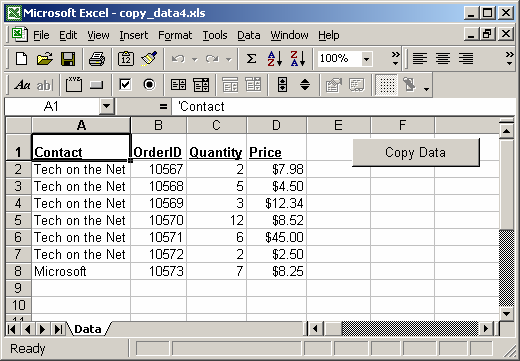
In our spreadsheet, we've created a button on the Data sheet called "Copy Data". When the user clicks on this button, a macro called CopyData will run. This macro will analyze each value in column A to search for a different value.
When a different value is found in column A on the Data sheet, the macro will then copy the values in columns A through D up to the different value, and paste into a new workbook.
So in this example, it copies all rows until it reaches the Microsoft value in cell A8 (on the Data sheet) and pastes these values to a new workbook.
The macro then saves the new workbook with the name found in column A. So the first workbook would be saved as "Tech on the Net.xls". The LPath variable determines where this file will be saved.
The macro then goes back to column A on the Data sheet and continues analyzing the value starting from cell A8.
It then creates another workbook called "Microsoft.xls" and copies the Microsoft data into this new workbook.
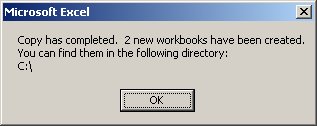
When the macro has completed, the above message box will appear. It identifies the number of new workbooks that were created and where to find them.
In this example, we've created two workbooks:
C:\Tech on the Net.xls
C:\Microsoft.xls
See pictures below:
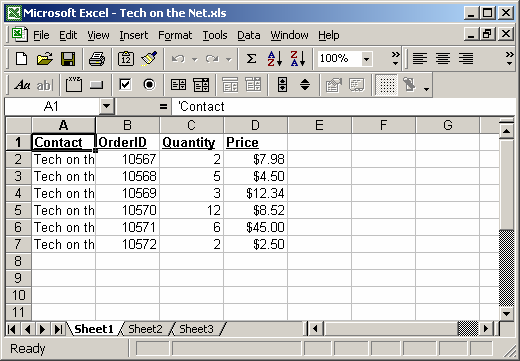
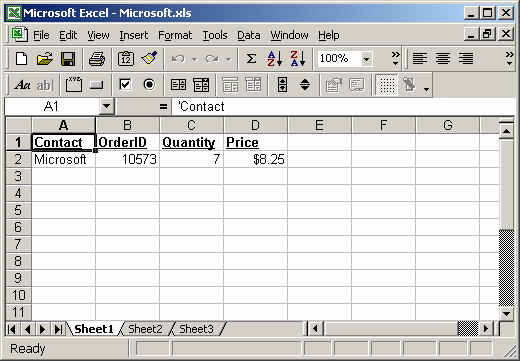
You will need to customize the LPath variable so that the new workbook files are saved to the directory that you want.
You can press Alt+F11 to view the VBA code.
Macro Code
The macro code looks like this:
Sub CopyData()

   Dim LMainWB As String
   Dim LNewWB As String
   Dim LRow As Integer
   Dim LContinue As Boolean
   Dim LColAMaster As String
   Dim LColATest As String
   Dim LWBCount As Integer
   Dim LMsg As String
   Dim LPath As String
   Dim LFilename As String
   Dim LColAValue As String

   'Path to save all new workbooks to
   LPath = "C:\"

   'Retrieve name of the workbook that contains the data
   LMainWB = ActiveWorkbook.Name

   'Initialize variables
   LContinue = True
   LRow = 2
   LWBCount = 0

   'Start comparing with cell A2
   LColAMaster = "A2"

   'Loop through all column A values until a blank cell is found
   While LContinue = True

      LRow = LRow + 1
      LColATest = "A" & CStr(LRow)

      'Found a blank cell, do not continue
      If Len(Range(LColATest).Value) = 0 Then
         LContinue = False
      End If

      'Value in column A
      LColAValue = Range(LColAMaster).Value

      'Found occurrence that did not match, copy data to new workbook
      If LColAValue <> Range(LColATest).Value Then

         'Copy headings
         Range("A1:D1").Select
         Selection.Copy

         'Add new workbook and paste headings into new workbook
         Workbooks.Add
         LNewWB = ActiveWorkbook.Name
         ActiveSheet.Paste
         Range("A1").Select

         'Copy data from columns A - D
         Windows(LMainWB).Activate
         Range(LColAMaster & ":D" & CStr(LRow - 1)).Select
         Selection.Copy

         'Paste results
         Windows(LNewWB).Activate
         Range("A2").Select
         ActiveSheet.Paste
         Range("A1").Select

         'Save (and overwrite, if necessary) workbook with name from column A
         'and then close workbook
         LFilename = LPath & LColAValue & ".xls"
         If Dir(LFilename) <> "" Then Kill LFilename
         ActiveWorkbook.SaveAs Filename:=LFilename
         ActiveWorkbook.Close

         'Go back to Main sheet and continue where left off
         Windows(LMainWB).Activate
         LColAMaster = "A" & CStr(LRow)

         'Keep track of the number of workbooks that have been created
         LWBCount = LWBCount + 1

      End If

   Wend

   Range("A1").Select
   Application.CutCopyMode = False

   LMsg = "Copy has completed. " & LWBCount & " new workbooks have been created."
   LMsg = LMsg & Chr(10) & "You can find them in the following directory:" & Chr(10) & LPath

   MsgBox LMsg

End Sub
Advertisements