



MS Excel 2003: Set up a cell to allow positive numbers
This Excel tutorial explains how to set up data validation to only allow positive numbers to be entered in the cell in Excel 2003 and older versions (with screenshots and step-by-step instructions).
See solution in other versions of Excel:
Question: In Microsoft Excel 2003/XP/2000/97, I want to set up a cell to only allow positive numbers. How can I do this?
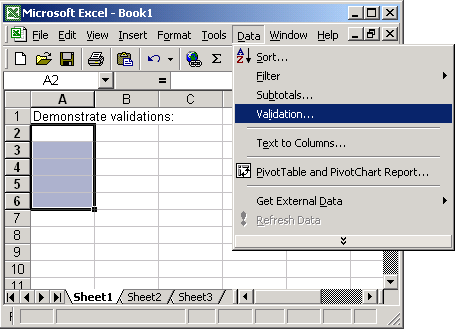
Answer: Select the cells that you wish to restrict to a positive numbers. In this example, we've selected cells A2 to A6.
Under the Data menu, select Validation.
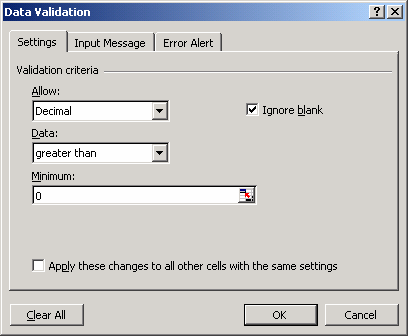
When the Data Validation window appears, set up your criteria. In this example, we've setup the cells to allow a positive number.
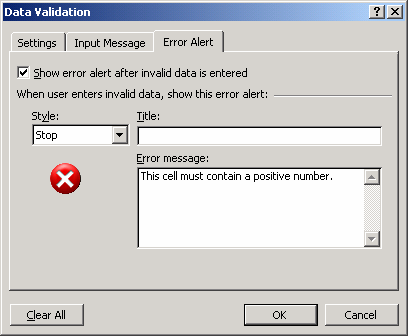
Next, click on the Error Alert tab.
Enter an Error message to appear when data entered does not conform to the validation rules.
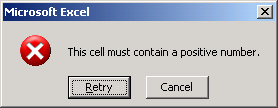
Now if a value is entered in one of those cells is not a positive number, the following error message will appear:


Advertisements