



MS Excel: How to use the ISERROR Function (WS, VBA)
This Excel tutorial explains how to use the Excel ISERROR function with syntax and examples.
Description
The Microsoft Excel ISERROR function can be used to check for error values such as #N/A, #VALUE!, #REF!, #DIV/0!, #NUM!, #NAME? or #NULL.
The ISERROR function is a built-in function in Excel that is categorized as an Information Function. It can be used as a worksheet function (WS) and a VBA function (VBA) in Excel. As a worksheet function, the ISERROR function can be entered as part of a formula in a cell of a worksheet. As a VBA function, you can use this function in macro code that is entered through the Microsoft Visual Basic Editor.
If you want to follow along with this tutorial, download the example spreadsheet.
Syntax
The syntax for the ISERROR function in Microsoft Excel is:
ISERROR( value )
Parameters or Arguments
- value
- The value that you want to test. If value is an error value (#N/A, #VALUE!, #REF!, #DIV/0!, #NUM!, #NAME? or #NULL), the ISERROR function will return TRUE. Otherwise, it will return FALSE.
Returns
The ISERROR function returns TRUE if the value is any error value. This includes #N/A, #VALUE!, #REF!, #DIV/0!, #NUM!, #NAME?, and #NULL error values.
The ISERROR function returns FALSE otherwise.
Applies To
- Excel for Office 365, Excel 2019, Excel 2016, Excel 2013, Excel 2011 for Mac, Excel 2010, Excel 2007, Excel 2003, Excel XP, Excel 2000
Type of Function
- Worksheet function (WS)
- VBA function (VBA)
Example (as Worksheet Function)
Let's look at some Excel ISERROR function examples and explore how to use the ISERROR function as a worksheet function in Microsoft Excel:
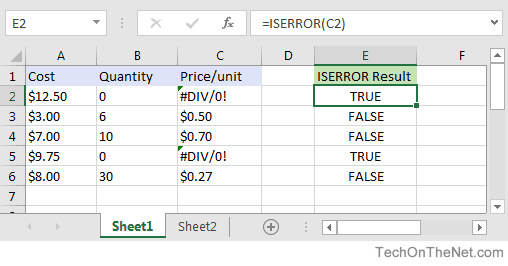
Based on the Excel spreadsheet above, the ISERROR function would return TRUE since cell C2 contains the #DIV/0! error:
=ISERROR(C2)
Result: TRUE
However, the ISERROR function in cell E3 would return FALSE because C3 contains the value $0.50 and is not an error:
=ISERROR(C3)
Result: FALSE
The ISERROR does not have to just look at the value in a cell, you can also use the ISERROR function to test the result of a formula.
For example:
=ISERROR(9.75/0)
Result: TRUE
If you tested to see if 9.75 divided by 0 was an error, the ISERROR function would also return TRUE because this formula would return the #DIV/0! error.
More Worksheet Examples
Here are more examples that show how to use the ISERROR function as a worksheet function in Excel:
Example (as VBA Function)
Next, let's look at an example of how to use the ISERROR function in Excel VBA code. In our example spreadsheet, we have created a button on Sheet2 that is called "Does cell A2 contain error?".
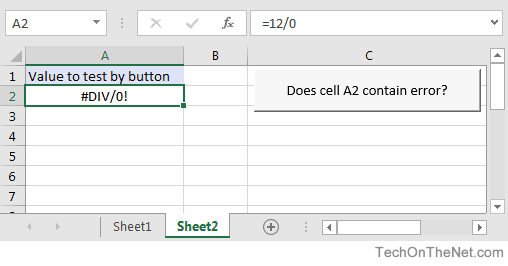
When we click on this button, it will run the following VBA code:
Sub TestIsErrorFunction()

   'Display IsError function for cell A2 on Sheet2
   MsgBox IsError(Sheet2.Range("A2")), vbOKOnly, "Does cell A2 contain an error?"

End Sub
This VBA code will pop up a message box displaying the whether the value in cell A2 on Sheet2 contains an error.
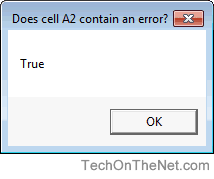
Since cell A2 on Sheet2 contains the error #DIV/0!, the message box displays True.
Frequently Asked Questions
Question: Can you give me specific examples of when and how the ISERROR function is used. Specifically, in a worksheet why would I use this function instead of just running down a column or across a row to look for the errors?
Answer: Often times your spreadsheet contains a large amount of formulas which will not properly calculate when an error is encountered. The ISERROR function, in combination with the If function, can be used to default a cell's value when an error is occurred. This allows your formulas to evaluate properly without your intervention.
For example, you may encounter a scenario below:
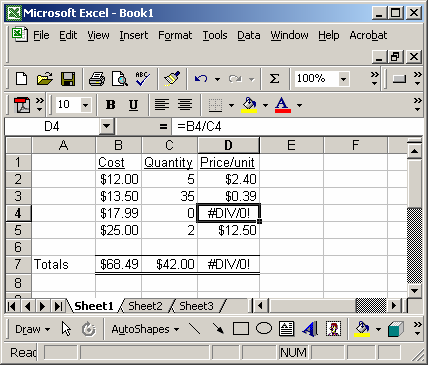
Instead of using the formula:
=B4/C4
You could use the ISERROR function as follows:
=IF(ISERROR(B4/C4),0,B4/C4)
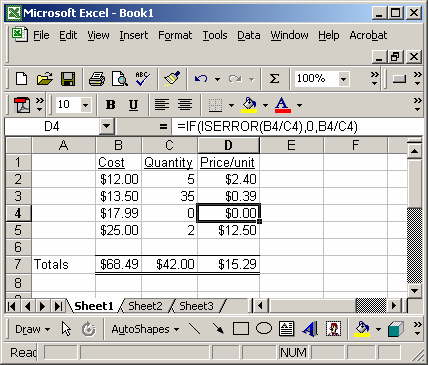
In this case, the ISERROR function would allow you to return a 0, when an error was encounter such as a "divide by 0 error". Now all of your formulas will still work.
Advertisements